
Get paid: connect your bank, autopay and invoices in 4 steps
Connect your bank, turn on autopay, send your first invoice and see your first payout. What it costs and when the money arrives.
Everything you need to take card and bank payments with the app, in plain words. The whole setup takes about 15 minutes.
Step 1. Connect your bank (5 minutes, one time)
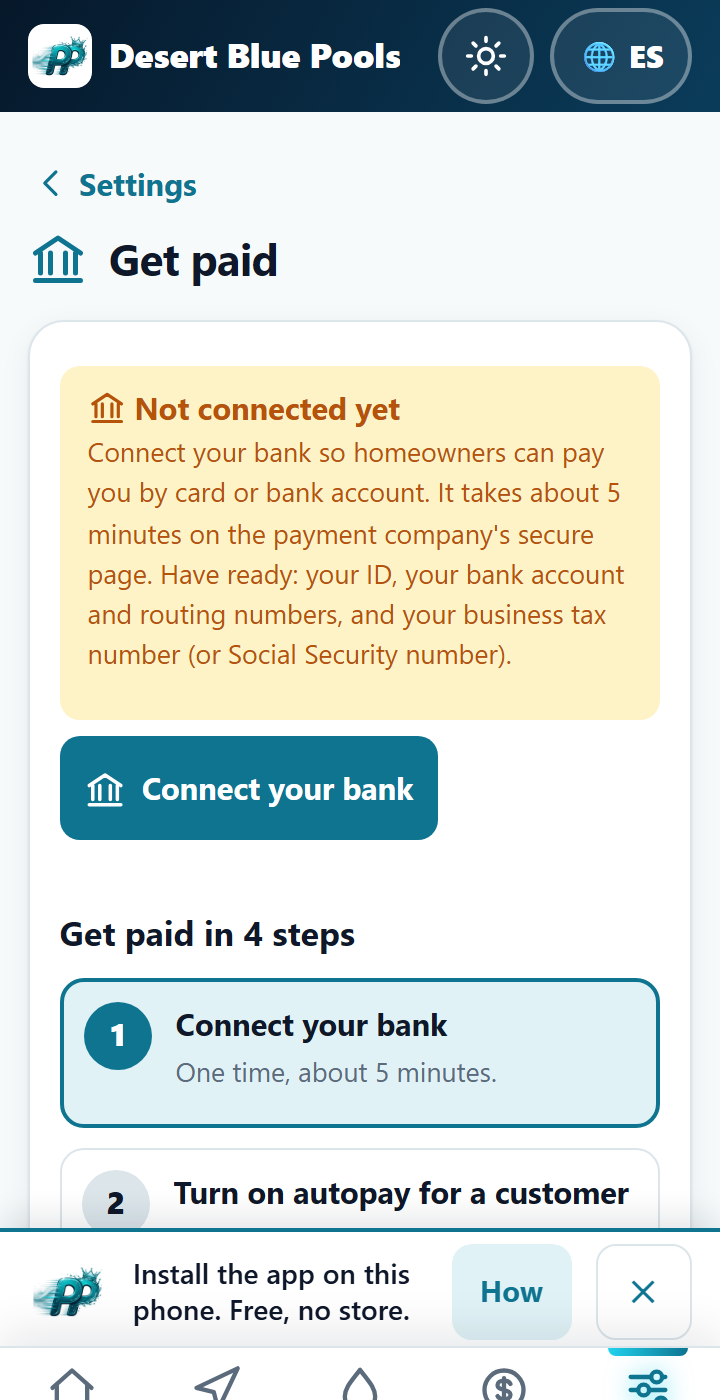
- Open Settings, then Get paid, and tap Connect your bank. You can also start from the checklist on Home.
- You land on the secure signup page of our payment partner (Stripe). Have ready: your ID, your bank account and routing numbers, your business tax number (EIN) or Social Security number, and your business address.
- When you finish, you come back to the app. The screen says Connected when you are ready. If it says the payment company is still checking, there is nothing to do: it usually takes a few minutes, sometimes up to two business days, and we email you.
If the payment company later asks for more (a document, a new bank account), you get an email and a banner on Home. Tap it, add what they ask for, and payments keep working.
What it costs
- Card: the payment company charges you 2.9% + 30 cents per payment.
- Bank account (ACH): the payment company charges you 0.8%, never more than $5.
- Our platform fee is in the Terms (Fees and financial obligations).
- No monthly fee for taking payments. You pay only when you get paid. The money goes to your own account: we never hold it.
When the money arrives
Your first payout usually takes 7 to 14 days while the payment company gets to know your account. After that it is normally 2 business days for cards and about 4 business days for bank payments. The Get paid screen shows your payout schedule once you are connected, and you can change it in your payment account.
Step 2. Turn on autopay for a customer
- Open the customer, set the service day, and choose the price per visit and how often to bill (every 4 weeks, every 2 weeks, or monthly).
- Tap Send signup link. The customer picks a bank account or a card on the payment company's page, and agrees in writing. You never see or type their numbers.
- From then on the app bills automatically at the start of each period. If a charge fails it tries again on day 3 and day 5, tells you, and after the third failure the pool goes on hold until it is paid.
- Changing the price of an autopay customer: they get written notice at least 10 days before the new price starts (a bank rule), and the app sends it for you.
Step 3. Send your first invoice
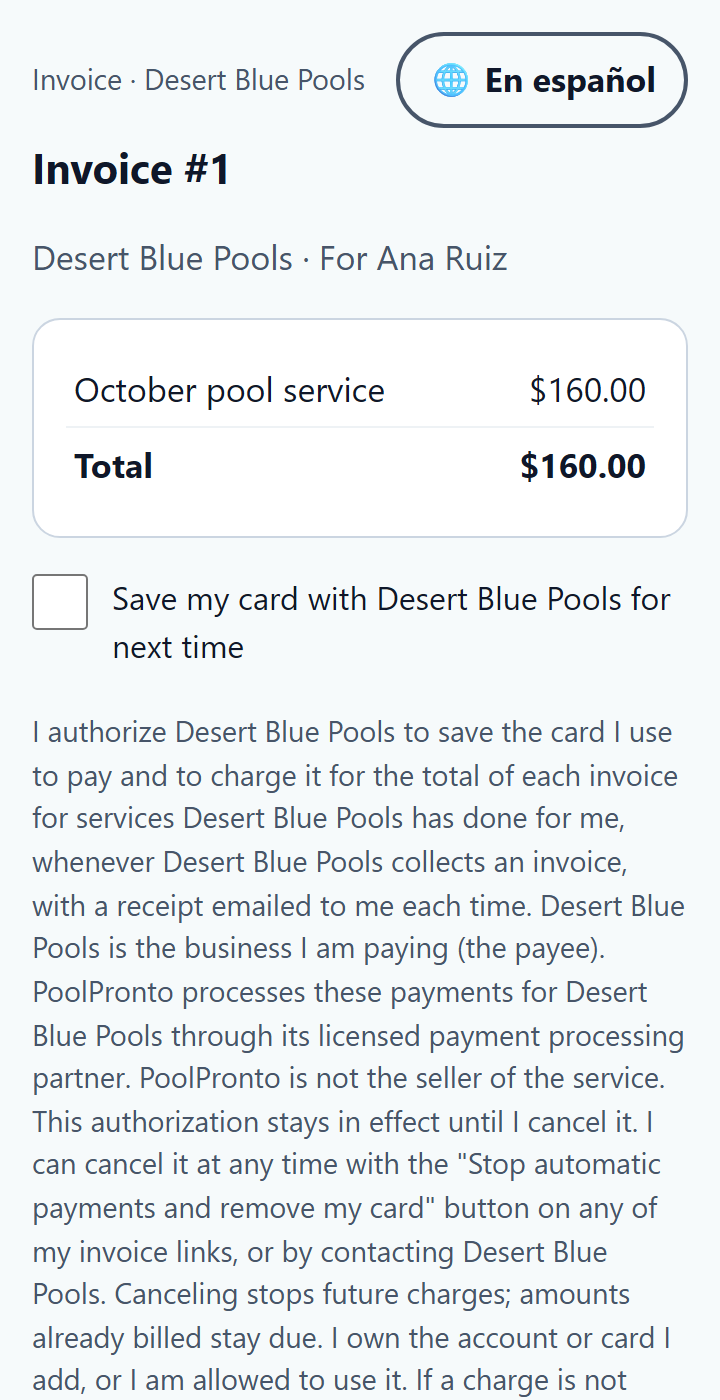
- Money, Invoices, New. Pick the customer, add what you did, and send it.
- The customer gets an email with a pay link. They see the amount and your company name, pay by card or bank, and get a receipt by email. The invoice turns Paid by itself.
- A bank payment takes a few business days. The invoice shows Your payment is on its way until it clears, so nobody pays twice. If the bank sends it back, you get an alert and the customer can pay another way.
Step 4. See your first payout
When a customer pays, the money goes to your payment account and then to your bank on your payout schedule. Look for it in your payment account's payouts list. Your books in the app show the payment and our fee as two lines.
If something goes wrong
- A customer paid twice: the second payment is returned automatically, with our fee, and you get an email.
- Refunds: open the paid invoice and refund all or part. Our fee on the refunded part comes back too.
- A dispute (chargeback): you get an email and a task to answer it in your payment account. The books are adjusted for you.
- The payment company is down: the customer sees a plain message and is not charged. Nothing is lost; they can try again in a minute.
- An amount under 50 cents or over $999,999.99 cannot be paid online. Record it as paid by hand.
Stuck? Use the Ask box on any screen and we will help.